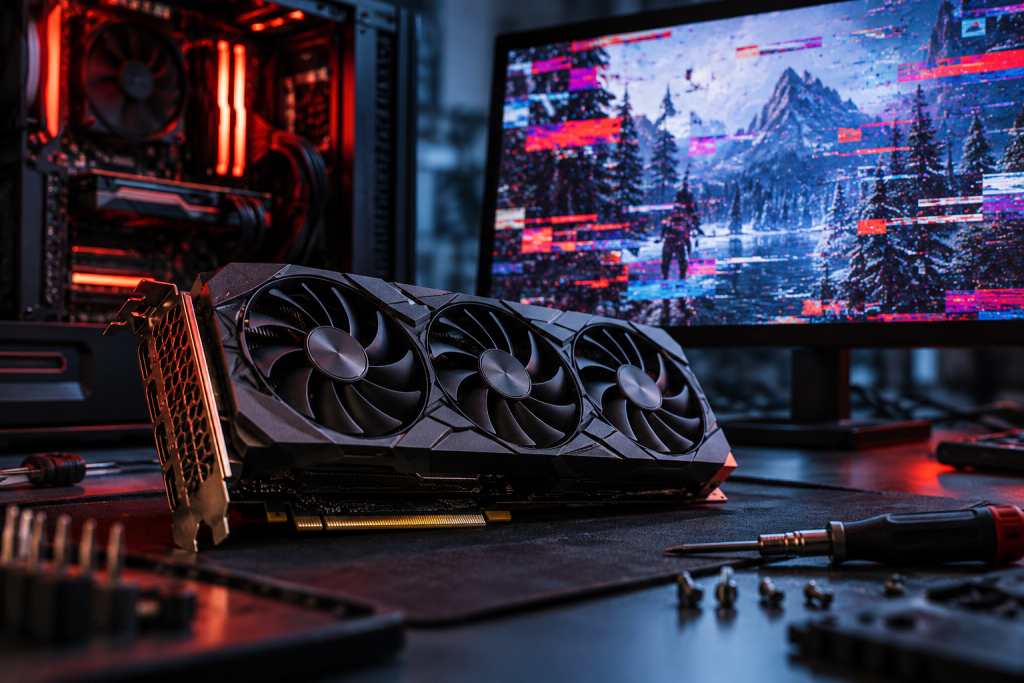
The screen goes black mid-match. The fans spin down, then ramp back up, and a few seconds later you’re staring at a desktop with a yellow exclamation mark next to your GPU in Device Manager. Or maybe there’s no warning at all, just a flicker and a driver crash notification in the corner. Either way, the card didn’t die. Something between Windows and your GPU driver broke, and the fix depends entirely on what kind of failure you’re actually looking at.
Most “graphics driver crashing” reports fall into two buckets: an explicit error code (usually 43) that Windows throws when it stops the device, or a crash with no error at all, where the display resets and recovers on its own. The diagnostic path is different for each. Here’s how to tell them apart and what to actually do.
First: is it the driver or the hardware?
Error code 43 is the one people panic about. It’s a generic hardware error in Windows 10 and 11, meaning the OS detected that your GPU reported a problem and stopped it to prevent further damage. The key detail: it does not mean the card is physically dead. It means Windows can’t talk to the driver or the hardware correctly. You’ll find it under “Display adapters” in Device Manager, and the General tab will read “Windows has stopped this device.”
That’s your first fork in the road. Code 43 can hit integrated and dedicated GPUs from NVIDIA, AMD, or Intel, and it comes from corrupted drivers, power instability, or hardware miscommunication. Software problems are far more common than dead silicon.
If instead you’re getting silent crashes with no code, a black screen that recovers, or games that stutter and drop to desktop, that pattern usually points at driver debris rather than a hardware fault. Different problem, different fix.
Start with the boring checks (they fix more than you’d think)
Before you uninstall anything, do the cheap stuff. It sounds trivial, but a restart clears temporary conflicts between Windows and the GPU driver, and Windows reinitializes hardware and reloads drivers on boot. If the crash is intermittent, that alone may stop it for weeks.
- Restart, don’t just close the lid. Full reboot. Sleep mode doesn’t reload the driver stack.
- Check Windows Update. Settings > Windows Update > Check for updates. Kernel and compatibility fixes land here, and they affect how hardware talks to the OS. Restart after any install and recheck Device Manager.
- Reseat the card. On a desktop, power down, unplug, and pull the GPU. Push it back into the PCIe slot until it clicks. Check the 6-pin and 8-pin power connectors are fully seated. Dust and vibration over time cause poor contact.
- Reseat the display cable. HDMI, DisplayPort, DVI, both ends. Laptops: plug into an external monitor to see whether the fault is internal or the panel.
A loose power connector or a half-seated card will produce exactly the symptoms of a “driver crash,” and no amount of DDU work fixes a card that isn’t plugged in properly.
The clean reinstall: Device Manager method
If the checks above don’t clear it, the next step is a driver reinstall. Microsoft’s own guidance for code 43 is straightforward, and it’s worth doing exactly as written before reaching for third-party tools.
- Right-click Start, open Device Manager.
- Find the device with the yellow exclamation point under Display adapters.
- Right-click it, choose Uninstall, confirm.
- Right-click your PC name at the top of the list, choose Scan for hardware changes. Windows reinstalls the driver.
- Right-click the device again, and on the General tab under Device status you want to see “This device is working properly.”
If that message doesn’t appear, you’re past the point where Windows can self-heal and you should look at the manufacturer’s documentation. But note what this method doesn’t do: it reinstalls whatever driver Windows wants to use, which is often several releases behind what NVIDIA or AMD ship. It’s a diagnostic, not a cure.
When you actually need DDU
Here’s the thing most people get wrong. Installing a fresh driver on top of an old one doesn’t remove the old one. GeForce Experience and AMD Adrenalin install new files over existing ones. Registry entries, leftover shader caches, orphaned DLL files, Vulkan runtime entries, and old driver store packages all stay behind. Even Microsoft’s own “Add or Remove Programs” entry for graphics drivers doesn’t clean this up properly.
Over time, and especially if you’ve switched from AMD to NVIDIA or back, that debris causes real crashes, black screens, stuttering, and performance drops that a normal update leaves in place. This is where DDU comes in.
Display Driver Uninstaller, a free tool from Wagnardsoft, strips every trace of the old driver so the new one installs on a clean slate. The correct order:
- Download DDU and your target driver first. You won’t have network access in Safe Mode on some setups.
- Boot into Windows Safe Mode.
- Run DDU and remove the current graphics driver.
- Reboot into normal Windows.
- Install the driver you downloaded.
Do this when you’re seeing corruption-level symptoms: repeated crashes across multiple driver versions, visual artifacts that don’t appear on a different GPU, or a card swap gone wrong. Don’t do it every month. For a routine update, the in-app updater is fine.
Driver version as a suspect
A recent driver release breaking compatibility is a real cause of code 43, especially right after a Windows feature update. The interaction goes both ways: new drivers can conflict with an older kernel, and new Windows builds can break an older driver.
If the crash started within a day or two of a driver update, roll back. Windows Update has begun reverting problematic GPU drivers automatically in some cases, but knowing how to install an older version manually is worth the five minutes. On NVIDIA, the Driver Updates page lets you search by product and series; older Game Ready drivers remain downloadable. On AMD, Adrenalin’s Manage Updates panel handles the current check, and the website archives previous releases.
Get drivers from the manufacturer, not through Windows Update. Windows Update has a poor track record with GPU drivers specifically, often serving a version several releases behind, which means you miss the bug fixes that would have solved your crash in the first place.
Past drivers: BIOS and PCIe conflicts
When software fixes stall, the fault can be firmware-level. An outdated motherboard BIOS can make a modern GPU miscommunicate with the board. Look up your exact motherboard model on the manufacturer’s site and follow their official flash instructions.
Serious warning: do not interrupt a BIOS update. A power loss during flashing can leave the system unbootable. Laptop on battery? Plug it in first.
One more hardware angle: other PCIe devices can interfere. Sound cards and capture cards occasionally conflict with the GPU. Open System Information (msinfo32), expand Hardware Resources, and check Conflicts/Sharing for overlaps. If you find some, move the GPU to a different PCIe slot or temporarily disable the offending device to isolate it.
When it really is the card
If you’ve done a clean DDU reinstall, updated Windows and BIOS, and reseated everything, and it still throws code 43, test the GPU in a second system. A known-working card in your PC tells you the slot and board are fine. Your card in another machine throwing the same error points at the hardware.
Persistent code 43 can indicate VRAM failure, overheating, or a defective connection. At that point you’re replacing the card, not the driver. Corrupted system files are the last software suspect, and a clean Windows install eliminates those, but it’s a heavy hammer for a problem that usually isn’t there.
Work the list in order. Most crashes never make it past step three.