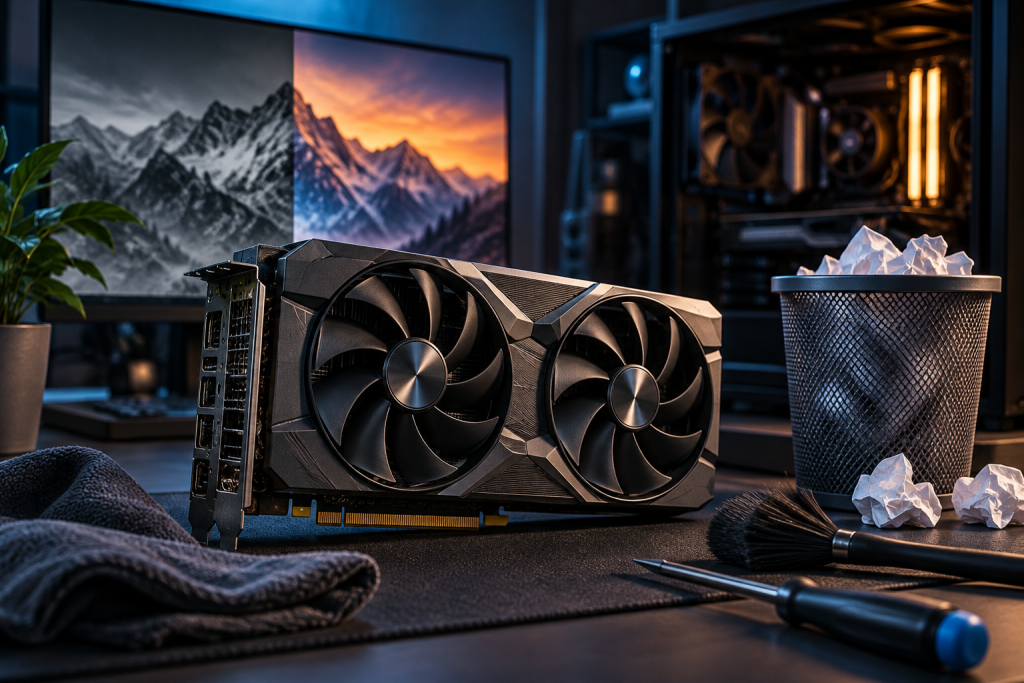
A game that ran fine last week now stutters. Or the screen goes black for two seconds mid-match. You update the driver, nothing changes, maybe it gets worse. That is the moment DDU (Display Driver Uninstaller) earns its place on your USB stick.
DDU is a free tool from Wagnardsoft that strips every trace of a graphics driver from Windows. Not the polite uninstall you get from Add or Remove Programs. The whole thing: driver store packages, registry keys, leftover folders, shader caches, scheduled tasks the driver software created. It exists because Windows and the GPU vendors never fully clean up after themselves.
Why the normal uninstall does not work
Uninstall NVIDIA or AMD drivers through Windows and you will still find registry keys, Vulkan runtime entries, shader cache folders, and stale driver store packages left behind. A regular update through GeForce Experience or AMD Adrenalin does not remove those either. It installs new files on top of old ones.
Most of the time that works. The debris just sits there. Then you switch from AMD to NVIDIA, or a major Windows feature update reshuffles the driver paths, and the leftovers start conflicting with the new stack. That is when you get the symptoms people blame on the new driver: random stutter, crashes, FPS regressions, black screens.
The shader cache piece matters more than most guides admit. Both NVIDIA and AMD keep compiled shaders in AppData. When that cache is corrupted or holds data from an older driver version, games stutter badly, especially in the first few minutes while the GPU recompiles. A normal update does not always clear it. DDU does.
When DDU is actually the right call
Not every driver update needs this. Running DDU monthly is wasted effort and adds risk. Use it when there is a real reason:
- Stutter or crashes started right around a driver update.
- FPS is clearly lower than it was weeks ago on the same settings.
- You swapped GPU vendors, AMD to NVIDIA or the reverse. This one is not optional.
- GPU weirdness appeared after a major Windows feature update.
- Driver installs keep failing or rolling back.
Routine monthly driver update with no problems? Skip DDU. Install normally. If you already followed our clean-install walkthrough for GPU drivers, this article goes deeper on the tool itself and the failure modes around it.
Worth saying plainly: if a clean install does not fix your stutter, the cause is elsewhere. DDU does not fix thermal throttling, a dying card, or a game with broken frame pacing. It fixes driver-state corruption. Nothing more.
Before you touch anything
Preparation takes five minutes and saves you an hour of pain. Once you are in Safe Mode, DDU disables networking by default, so you need everything on disk first.
Grab DDU from Wagnardsoft’s official site. Always. Third-party download mirrors bundle adware, and DDU modifies the driver store, which is exactly the kind of tool those bundles love to piggyback on.
Grab your new GPU driver manually. NVIDIA from nvidia.com/drivers, AMD from amd.com/support, Intel Arc from intel.com/download-center. Use the manual product search, not the auto-detect tool. Auto-detect serves the wrong SKU more often than the right one on mixed-GPU laptops and prebuilts.
Extract DDU to a plain local folder, your Desktop or C:DDU. DDU ships as a self-extracting 7-zip archive. Do not run it yet.
Version check
Current stable as of the latest release notes is DDU 18.1.6.0, which added Qualcomm Adreno and Snapdragon X cleanup, ARM64 identification, and NVIDIA preparations for RTX Spark. If your copy is months old, download it again. Wagnardsoft ships updates every 6 to 8 weeks to track new driver packages, and older builds miss current Windows 11 driver paths. Check the version in DDU’s top-right corner.
Two things that trip people up
Add the DDU folder to your antivirus exclusions. Windows Defender, Malwarebytes, and most third-party AV tools flag DDU as a potentially unwanted program because it modifies the driver store. This is not a false positive you can ignore. Real-time scanning can block DDU mid-clean and leave your driver state half-removed, which is far worse than where you started. In Windows Security: Virus & threat protection, Manage settings, Add or remove exclusions, Add an exclusion, Folder.
Do not run DDU from OneDrive, Dropbox, Google Drive, or any synced folder. The sync client holds file handles on the executable and you get file-lock errors partway through cleanup. Network drives fail the same way.
Laptop and OEM desktop owners
If you are on an MSI, ASUS, Dell, HP, Lenovo, or Razer laptop, or a prebuilt with custom GPU hardware IDs, get your driver from the laptop vendor’s support page for your exact model, not the generic NVIDIA or AMD download. OEM driver packages sometimes carry custom hardware IDs that reject generic drivers with a “not compatible” error. You can still use DDU to clean, just install the vendor package afterward.
The process
Safe Mode is not optional here. In normal mode, Windows can reload driver files while DDU is working. If you must run in normal mode, the documented fallback is: clean, reboot, clean again, reboot. Safe Mode does it in one pass.
Boot into Safe Mode using msconfig, Win+R, Boot tab, tick Safe boot (Minimal), restart. Launch DDU. Select device type GPU and your vendor. Leave the options alone if you are unsure. Click Clean and restart. That is the recommended path.
DDU wipes the driver stack and reboots. Your screen goes low-resolution. That is normal. The basic display driver is carrying the desktop.
Now, still offline, run the driver installer you downloaded. On NVIDIA, choose Custom and tick Clean installation, then untick the components you do not use. On AMD, Full Install. Reboot when prompted.
Reconnect afterward. Rebuild your settings: NVIDIA Control Panel or Adrenalin tuning, G-Sync or FreeSync, any undervolt or Afterburner profile. A clean install resets all of it. If you used msconfig, untick Safe boot now.
Recent DDU changes worth knowing
Version 18.1.6.0 preserves Intel and Qualcomm laptop manufacturer driver extensions by default, specifically to prevent Code 31 failures on those platforms. Removal is still optional. It also preserves camera drivers tied to Intel Lunar Lake and Snapdragon graphics. If you are on a recent Intel or Qualcomm laptop, that default behavior is what you want. Do not go hunting for options to remove extensions you do not understand.
The same release fixes black screens that occurred when Windows’ basic display driver was disabled, and first-attempt Safe Mode failures following older DDU installations. Two more reasons to stop using a stale copy.
What DDU will not fix
It will not fix a bad overclock. It will not fix a PSU that cannot hold your card under load. It will not fix a driver bug that exists in the new driver too, though a clean install at least removes the variable of your leftovers.
The honest verdict: DDU is a sharp tool for a narrow, specific problem. Driver-state corruption is real, it survives updates, and Windows has no built-in way to clear it. When you suspect it, this is the fix. Every other week, it is just risk with no upside.
Keep a current copy of DDU on a local drive, keep your vendor’s manual download page bookmarked, and reach for the tool when the symptoms actually match. That is the whole discipline.