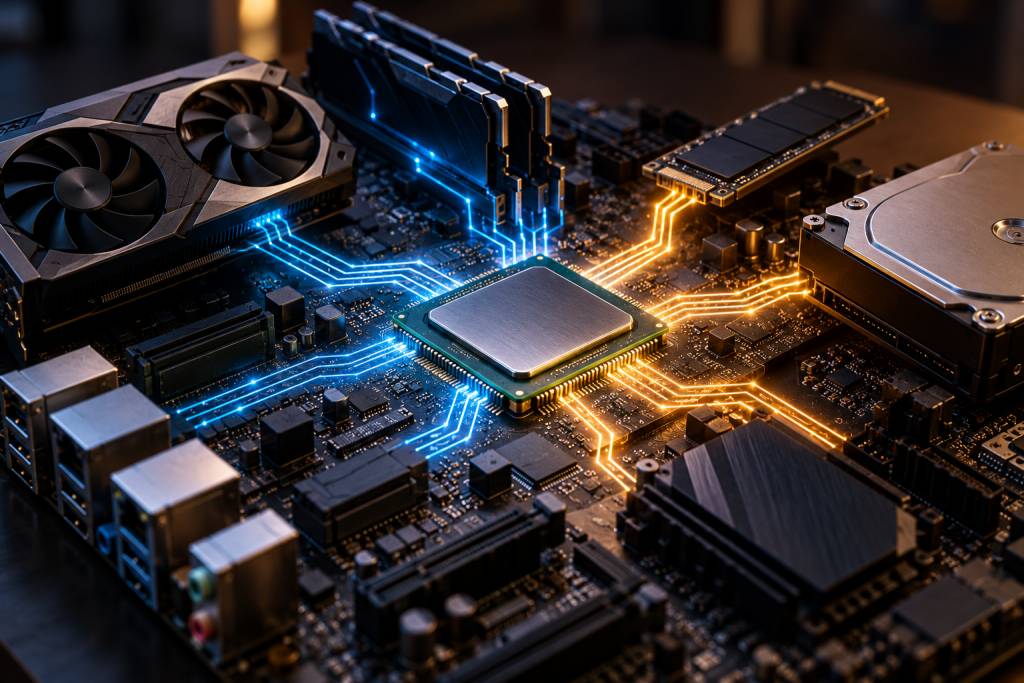
Your GPU driver gets all the attention. It has a control panel, a fancy updater, and a whole community arguing about which version broke which game. The chipset driver sitting underneath it gets none of that. And yet on a modern Windows box, it quietly decides how your SSD talks to the CPU, how many USB ports behave, and whether that shiny new NVMe drive runs at full speed or limps along at half of it.
Most people skip it. Then they wonder why a fresh Windows install feels weirdly sluggish, or why a device shows up as an unknown blob in Device Manager. Let’s talk about what the chipset actually is, why its driver is a different animal from your GPU driver, and how to handle it without turning a five-minute job into an afternoon of reinstalling Windows.
What the chipset actually is
A chipset is the set of components that manages data flow between the processor, memory, and peripherals. On a traditional x86 desktop it was two chips: the northbridge and the southbridge. The northbridge handled the fast stuff, meaning system RAM and the primary expansion buses like PCIe and AGP, and it was the link back to the CPU over the front-side bus. The southbridge handled everything slower: USB, storage connections, audio, serial and parallel ports.
That split has largely collapsed. On modern platforms most of what the northbridge used to do now lives directly on the CPU, and what’s left of the southbridge is a single chip that carries the platform’s name. AMD calls it the chipset. Intel calls it the PCH, the platform controller hub. Different names, same job. It’s the traffic cop for everything that isn’t the CPU and RAM talking directly to each other.
One detail that trips people up: motherboards and their chipsets often come from different manufacturers. The board vendor (Asus or Gigabyte, say) builds the physical PCB, but the chipset silicon and the reference driver come from AMD or Intel. That distinction matters more than you’d think when it’s time to find the right download.
Why the chipset driver is not like your GPU driver
Here’s the part that separates chipset drivers from everything else on your machine. Your GeForce or Radeon driver is a graphics driver with a game-ready update cadence. New version every few weeks, big release notes, sometimes a regression that ruins your frame times and gets walked back. The chipset driver doesn’t work that way.
It’s a package of several smaller drivers bundled together. Depending on the platform you’ll find things like the PCIe root port drivers, the SATA or NVMe controller interface, USB host controller support, power management hooks, and often an SMBus or I2C controller that monitoring software reads. There’s also a separate management engine or platform security component on Intel boards, and AMD ships its own equivalent. None of it is glamorous. All of it is load-bearing.
The installation model is also different. GPU drivers get updated constantly and can be rolled back from the vendor’s own panel with a couple of clicks. Chipset drivers land rarely, maybe once or twice a year, usually to add support for a newer CPU stepping or fix a stability quirk. And when one misbehaves, you’re rolling it back through Device Manager by picking an older version from the list of available drivers, or by reinstalling the previous package from the motherboard support page.
What actually goes wrong without it
Windows Update will hand you a generic chipset driver on a fresh install. It usually works. “Works” is doing a lot of heavy lifting there. The generic driver often leaves out platform-specific power management, so your laptop idles a little hotter and drains a little faster. It can present PCIe devices with conservative link settings, which is the classic reason a drive that benchmarks at 7,000 MB/s in the reviews shows up at half that on your desk. It can leave an unknown device in Device Manager because the integrated sensor or the RGB controller doesn’t have a matching entry in Microsoft’s driver catalog.
On desktops the symptom is subtler. USB ports that drop a device under load. Sleep that doesn’t wake cleanly. Random event log entries you can’t pin to anything. None of these scream “chipset driver,” which is exactly why they get misdiagnosed as a bad board or a dying power supply.
There’s a real risk in updating badly, though. Drivers can introduce new bugs, cause system crashes, or drop performance, and a badly matched chipset package is a fast route to a boot loop. So the rule that applies to every other driver applies here too, only more so.
The order that actually matters
If you’ve just reinstalled Windows, install the chipset driver before anything else. Before GPU, before audio, before the network adapter. The chipset package tells Windows how to talk to the PCIe lanes your GPU sits on. Installing the GPU driver first and the chipset second means the graphics stack learned about the system through the generic fallback, and you can end up with resource conflicts that look like a graphics problem and aren’t.
Grab the package from one place: the motherboard vendor’s support page for your exact board model, or the laptop manufacturer’s page for your exact model. Not a third-party “driver updater.” I know the tools are convenient. The bundled-in-extras problem is real, and a mismatched chipset package from a database that guessed your board model is not a trade I’d make.
The safe sequence looks like this:
- Create a system restore point first. This is non-negotiable. If the new package breaks boot, a restore point is your way back.
- Note your current chipset driver version in Device Manager so you have something to compare against.
- Download the latest package for your board from the vendor’s support page.
- Run the installer and let it complete. It will usually offer to reboot. Let it.
- Check Device Manager afterward for any yellow exclamation marks or unknown devices.
- Test the basics: sleep and wake, a USB transfer, and a quick disk benchmark if you’re chasing performance.
If something breaks, roll back through Device Manager by opening the device’s Properties, going to the Driver tab, and choosing the older version from the available list. If Windows doesn’t offer a previous version, download and reinstall the last known-good package from the vendor. And if the system won’t boot at all, that restore point you made is worth its weight in gold.
When to leave it alone
The advice I give most often is: don’t touch a working chipset driver. If your system is stable, your ports behave, and your drives hit their rated speeds, there is no prize for being on the newest package. Chipset updates exist to fix specific problems or add support for newer hardware. They are not a performance tune-up.
Update when you have a reason. A new CPU generation on the same socket. A specific device that won’t be recognized. A BIOS update that the vendor says requires a matching chipset package. Or a fresh Windows install where you’re building the stack from scratch and want to do it in the right order.
Everything else is churn. The chipset driver is the least exciting, least discussed, and most structural piece of software on your machine. Treat it like plumbing. You don’t think about it until something leaks, and when something does leak, it’s usually the first place to look.