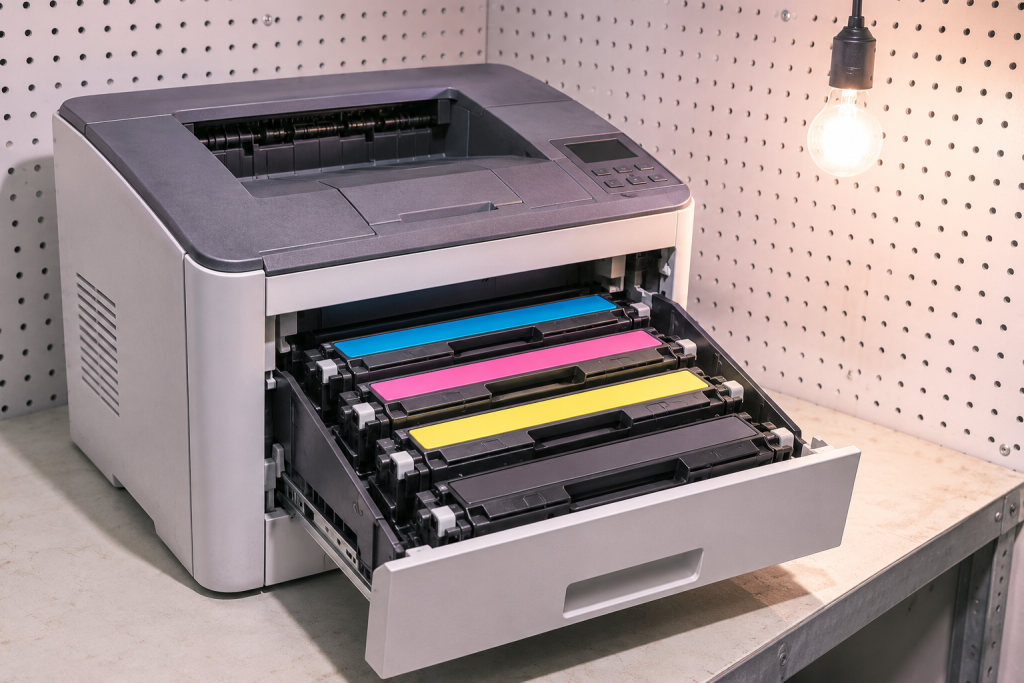
The HL-L2350DW is one of those mono laser printers that should take three minutes to set up over Wi-Fi and somehow takes forty. The cause is rarely the printer. It is Windows 11’s protected print mode, an over-eager installer, or a driver package carrying five things nobody asked for. Here is the path we use to get this model printing wirelessly with just the driver and none of the Brother suite.
Short verdict first: turn off Windows protected print mode, grab the full driver package from Brother’s support page for the HL-L2350DW, and uncheck everything except the driver itself during setup. Skip the bundled utilities, the “software suite” and the status monitor. They add startup entries and background services for features most people never open.
Why Windows 11 breaks the usual install
Windows 11 introduced what Brother documents as Windows protected print mode. It is a security layer that stops third-party printer drivers from hooking into the print subsystem, which closes off a class of driver vulnerabilities. Sensible in theory. In practice, it means a signed Brother driver can refuse to install or simply not talk to the device.
The setting lives under Settings > Bluetooth & devices > Printers & scanners. Scroll to Printer preferences and look for the Windows protected print mode entry. If you see a Turn off button, the mode is on and is probably your culprit. If you see Set up instead, it is already off and you can move on.
Turning it off reopens the door for any third-party printer driver, not just Brother’s, so be deliberate about doing it. On a machine that only ever touches your own peripherals, that trade is fine. On a shared or work PC, weigh whether the basic driver route below is enough first.
Option one: keep Wi-Fi and use the full driver
If you want the HL-L2350DW to do everything it can do over wireless, turning the mode off is the clean path.
- Uninstall any partially installed Brother driver first. Brother’s own guidance is to remove the software and drivers through Brother Utilities if something is already half there, because a failed install leaves registry and driver store remnants that confuse the next attempt. If Brother Utilities is not present, remove the device from Printers & scanners and tick the box to delete the driver software.
- Turn off Windows protected print mode as described above and confirm the prompt.
- Close the Settings window. This matters; the install can fail silently if the Settings app stays open during driver registration.
- Download the full driver package for the HL-L2350DW from Brother’s support site for your region and Windows 11. Run it.
- When the installer offers a connection type, choose wireless and let it configure the printer. Have the printer’s Wi-Fi details ready; if the printer is not yet on the network, the installer can push them during setup over a temporary direct connection.
- In the custom or advanced setup screen, uncheck everything except the printer driver itself. That means no status monitor, no Brother iPrint&Scan, no PaperPort, no update agent.
The update agent deserves a specific mention. It schedules itself to check for new packages and pops dialogs at inconvenient moments. If you want newer firmware later, you can fetch it from the support page yourself. Use Device Manager and the vendor page as your only driver sources and you avoid a whole category of surprise reinstall.
Option two: leave the mode on and print anyway
You do not have to disable a security feature to get this printer working. There are two supported routes with protected print mode enabled.
The first is the Microsoft IPP Class Driver. It is a standard driver Windows ships and uses for IPP-capable printers, and it works with the HL-L2350DW. The trade is features: only basic printing is available. No window into toner levels from the driver, no advanced paper handling dialogs. For a plain document printer, that is often all anyone needs.
The second is the Brother Print Support App, which Brother publishes specifically for this scenario. It runs alongside the IPP Class Driver and restores features that used to require the full driver. Before you commit to either route, check the Mopria compatibility list on the Mopria site; click through to Brother’s entry to confirm the HL-L2350DW is covered.
Our take: if the printer sits in a home office and prints text, the IPP route is the least maintenance you will ever do. If you need the Brother feature set, take option one.
Wiring it up without the installer’s help
Sometimes the package installs but the printer never appears, or you deliberately skipped the wireless wizard. Manual connection is straightforward.
- Get the printer on the network. On the HL-L2350DW, use the control panel menu to join your SSID and enter the key. Confirm the Wi-Fi indicator stops blinking and stays lit.
- In Windows, go to Settings > Bluetooth & devices > Printers & scanners > Add device. Windows should find it on the same subnet.
- If it does not appear, choose Add manually and select the network printer by IP address. The printer’s IP shows on its network configuration report, which you can print from the control panel.
Once added, open Device Manager, expand Print queues, right-click the HL-L2350DW and select Update driver. Choose Browse my computer for drivers and point it at the folder where the downloaded package unpacked. That forces Windows to use Brother’s INF rather than whatever generic entry it picked up first. If that does not take, run the wizard again with Search automatically for drivers and let Windows have a second look.
When the driver is simply missing
The classic symptom is “printer driver is unavailable” in the print dialog. Two fixes cover most cases.
First, run the printer troubleshooter from Settings > Bluetooth & devices > Printers & scanners. Select the printer and click Run the troubleshooter. It catches spooler hiccups and port mismatches often enough to be worth the thirty seconds.
Second, if the driver is corrupt or a recent update broke it, remove it cleanly. In Device Manager, expand Printers or Print queues, right-click the device, choose Uninstall device, and check Delete the driver software for this device before confirming. Restart. Windows reinstalls a working driver on startup, and then you can layer the Brother package back on top.
If none of that sticks, reset the firewall only as a last resort; an over-restrictive rule can block communication between Windows and the printer over the network.
What we skip and what we keep
The HL-L2350DW is a workhorse mono laser. It does not need a tray of utilities to do that job. Our default setup is the Brother driver, the printer added over Wi-Fi, and nothing else from the package. The status monitor and update agent are the two items we actively avoid; they load at startup and add noise to a machine that should be quiet.
If you ever need to reinstall, remember that the protected print mode setting is the first thing to check before touching the driver at all. Most failed installs on Windows 11 trace straight back to it.