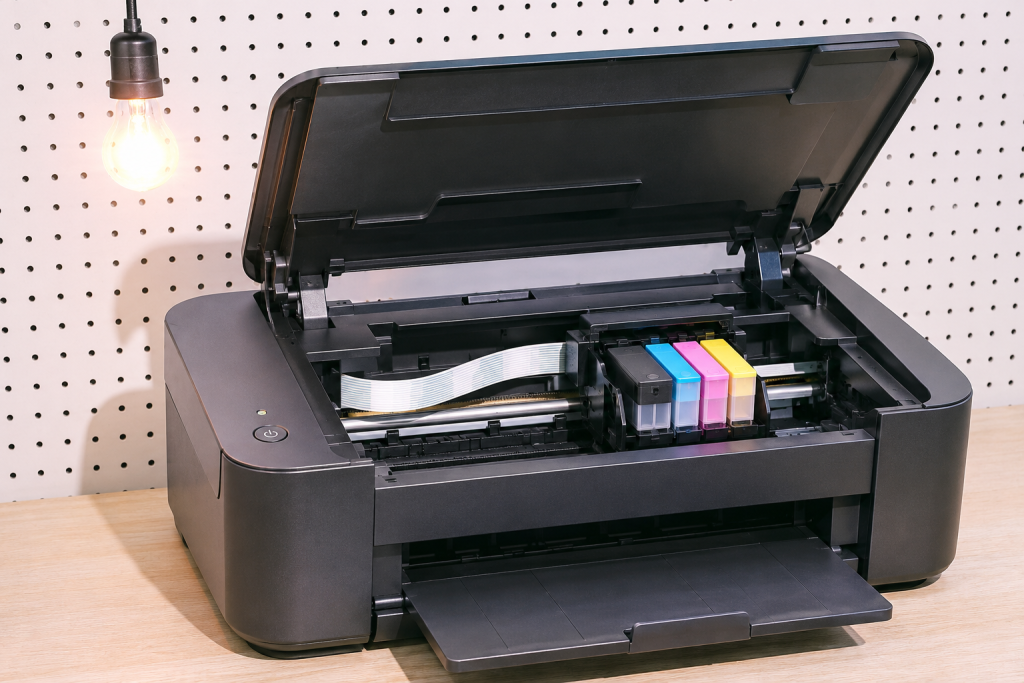
The printer vanishing after sleep is almost never a dead printer. It is Windows powering down the USB port, the print spooler, or the driver itself and then failing to wake them back up in the right order. The good news: most of these fixes live in driver and device settings you can change in under ten minutes, no reinstalls required. Below is the order we work in, cheapest and least disruptive first.
Why it goes missing at sleep, not at boot
When your PC sleeps, Windows cuts power to USB ports and unloads idle services. On wake it reloads them, but the print queue and the driver stack do not always come back in sync. You end up with a printer that shows offline, a duplicate ghost entry in Devices and Printers, or the plain “driver is unavailable” error. None of that is a hardware fault; it is the driver state getting scrambled across the sleep transition.
We start by ruling out the boring stuff. If the printer is a network or Wi-Fi model, sleep on the router can drop the connection independently of Windows. Check that the printer still answers on the network before you touch any driver setting.
1. Stop Windows from powering off the USB port
For a USB printer, the single most common cause is USB selective suspend. Disable it before anything else.
- Open Control Panel and go to Power Options.
- Click Change plan settings, then Change advanced power settings.
- Expand USB settings, then USB selective suspend setting, and set it to Disabled.
Then stop the port itself from sleeping. Open Device Manager, expand Universal Serial Bus controllers, right-click the USB Root Hub the printer is on, open Properties, go to the Power Management tab, and clear “Allow the computer to turn off this device to save power.” If several root hubs are listed, repeat for each one the printer could be using. Restart and test sleep once.
2. Check that the driver is still loaded after wake
If the port fix did not hold, confirm whether Windows is losing the driver or just the connection. Open Device Manager and expand Print queues. A printer still listed but showing a warning badge after wake points at the driver. A printer that disappears from the list entirely points at the USB or network layer. That distinction decides your next move.
3. Update the driver from the manufacturer, not from Windows Update
Windows Update often serves a generic driver that half-works. Grab the current driver for your exact model from the printer maker’s support page. Match the Windows version and architecture; a driver built for a different build will install and then misbehave. If the download comes as an .exe installer, run it and let it do the work. If it arrives as loose driver files, point Device Manager at the folder:
- Right-click Print queues in Device Manager and choose Update driver.
- Select Browse my computer for drivers.
- Click Browse, select the folder holding the downloaded drivers, then Next.
If the wizard reports the best drivers are already installed, the files were not matched. Check the folder path and that you grabbed the right architecture.
4. Roll back if a recent update broke it
Did the disappearing act start right after a driver update? That is a strong signal the new driver is the problem. Reopen the printer’s Properties in Device Manager, go to the Driver tab, and select Roll Back Driver. Choose a reason when asked and confirm. This restores the previous version in one step and is often faster than hunting for an older installer online. If the button is greyed out, no previous driver is stored and you will need to uninstall and reinstall instead.
5. Reinstall the driver cleanly
If the driver is corrupt, a plain update will not fix it. In Device Manager, right-click the printer under Print queues and choose Uninstall device. Tick the box to delete the driver software if offered, restart, then reinstall from the manufacturer’s installer or re-add the printer. Windows rebuilds the queue on startup, which clears the scrambled state left over from sleep.
6. Fall back to the generic driver to confirm the cause
This is a diagnostic, not a fix. Swap in Microsoft’s generic driver temporarily; if the printer survives sleep on the generic driver, the vendor driver is at fault and it is time to try an older version from the maker’s archive. To do it, open Device Manager, expand Print queues, right-click the printer, choose Update driver, then Browse my computer for drivers and Let me pick from a list of available drivers on my computer. Select Generic software device and continue. Restart and test. When you have confirmed the cause, put the correct vendor driver back; the generic driver drops model-specific features and is a stopgap only.
7. Repair the spooler and the queue
Sometimes the printer is fine and the print spooler service is the thing failing to wake. Open Services, find Print Spooler, and confirm its startup type is Automatic. If jobs are stuck, stop the service, clear the files in the spool folder, and start it again. A stubborn queue can make the printer look missing even when it is connected.
8. Rebuild the network path for a Wi-Fi printer
For a wireless or network printer, assign it a fixed IP in the printer’s own settings or a DHCP reservation on the router. A printer that changes address after the router reboots will appear offline in Windows until the queue catches up. If it is shared from another PC, make sure that host is not sleeping when yours wakes.
9. When to reset the network and firewall
If Windows can see the printer but cannot reach it, firewall rules may be blocking the port after a profile switch. Rather than editing individual rules, resetting the firewall back to defaults is quicker and safer. Open Control Panel, go to Windows Defender Firewall, and use Restore defaults. Also run Windows Update: a known bug in the OS can trigger exactly this symptom, and Microsoft sometimes ships the fix through cumulative updates. Install anything pending and reboot before you go further.
What we do not bother with first
The built-in printer troubleshooter is mostly gone on current Windows 11 builds, so do not count on it. We also avoid third-party “driver updater” suites here; they tend to swap in generic packages that reintroduce the same sleep bug. Manufacturer installers plus Device Manager cover everything above.
Nine times out of ten the fix is step 1 or step 3. Work top to bottom, change one thing at a time, and test sleep after each change so you know which setting actually held.